
Power Cycle Modem Router: The Best Way to Fix Slow Internet

Introduction
Power cycling is the definitive first line of defense when facing frustrating internet slowdowns or complete connectivity outages. It involves intentionally and completely shutting down and restarting your network equipment—specifically your modem and router—to clear temporary digital glitches and force a clean refresh of the connection handshake. When trying to fix slow internet, the key is not just to hit the power button, but to follow a specific sequence. Improper sequencing can lead to incomplete resets, meaning the temporary issue persists. This guide outlines the professional, step-by-step procedure for power cycling your modem and router, ensuring you execute the process correctly, and provides advanced diagnostics for when the simple restart isn’t enough.
Understanding the Power Cycle Sequence
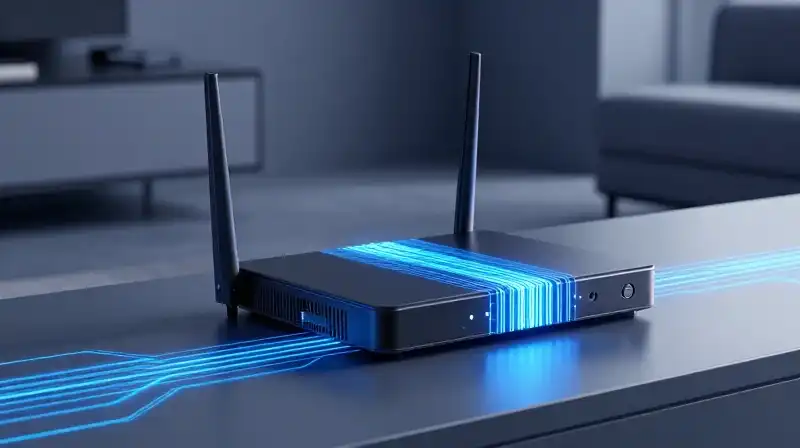
The success of a power cycle hinges on proper timing and sequence. The modem handles the communication with your Internet Service Provider (ISP), while the router handles the local network traffic and device management. By isolating these functions, we can ensure the entire network chain is reset properly. If you simply restart the router without first cycling the modem, the router may try to maintain a connection with a modem that is still holding onto faulty internal data or struggling with a signal issue.
The Definitive Step-by-Step Guide
To ensure a complete reset of your home network, follow this procedure precisely:
- Power Down All Devices: Start by powering down all connected devices, including computers, smartphones, and any printers.
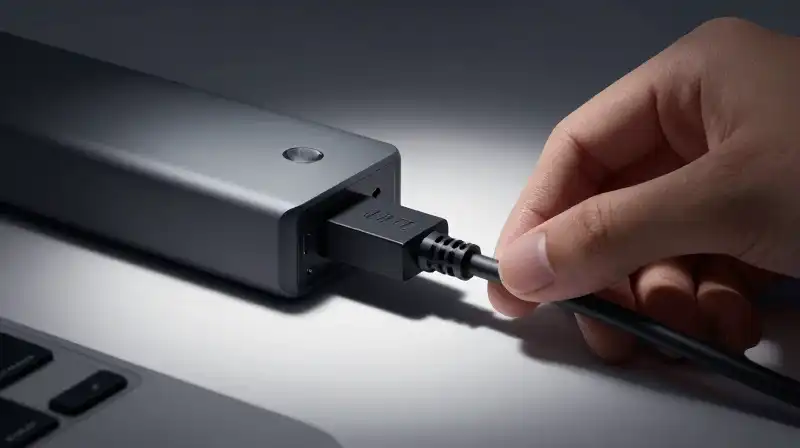
- Disconnect Core Hardware: Unplug the power cords from both the modem and the router (or the combined gateway). If your modem or cable has a battery backup, physically remove it to guarantee a full power loss.
- Wait and Refresh: Wait for at least two minutes. This waiting period is critical as it allows the internal capacitors in the networking equipment to fully discharge, guaranteeing a complete memory and software flush.
- Power Up the Modem First: Plug the modem back in and turn it on. This device must connect to your ISP before the router can function. Allow the modem five full minutes to establish a stable connection and complete its signal synchronization sequence. Wait until its indicator lights (such as ‘Online’ or ‘Internet’) are solid and steady.
- Power Up the Router: Once the modem is fully operational, plug the router back in and turn it on. Wait for the router’s indicator lights to stabilize and confirm it is broadcasting the local Wi-Fi signal.
- Reconnect End Devices: Finally, restart your computer or phone to ensure they acquire the new, clean IP addresses provided by the router.
Why Power Cycling Works: The Technical Explanation
When your internet slows down or becomes unstable, it is often due to what is called “buffer bloat” or internal memory saturation. Over time, the modem and router retain temporary data, connection logs, and cache. These accumulated fragments—even if not visible to you—can degrade performance. By completely shutting down and restarting the devices, you force them to discard this saturated cache and perform a fresh “handshake” with the ISP and your local devices. This process clears temporary glitches and forces the hardware to run on a clean slate, often resolving minor latency issues.
When the Reset Fails: Diagnosing the Root Cause
If a standard power cycle does not resolve the slow internet, the problem is likely deeper than a temporary glitch. The next step is distinguishing between a local hardware failure (your router or internal network) and an external infrastructure problem (the ISP).
Bypassing the Router: Local vs. External Issues
A crucial troubleshooting technique is connecting a single device directly to the modem, bypassing the router entirely. If your internet speed instantly improves when connected directly to the modem, the issue is confirmed to be within your local network hardware (the router itself). If the slowness persists even when connected directly to the modem, the problem lies outside your home, requiring an intervention from your Internet Service Provider (ISP).
Advanced Diagnostics: Pinpointing Latency
Before immediately contacting your ISP, you can use command-line tools to find exactly where the latency exists. Running commands like tracert or pathping from a computer will show you every “hop” between your device and a website server. If the latency spikes occur within the first few hops, the issue is local. If the spikes occur far down the chain, it suggests a problem with the ISP’s external routing or infrastructure.
Preventative Maintenance and Hardware Health
For proactive performance, consider these factors:
- Firmware Updates: Regularly checking for and installing the latest firmware for your router is vital. Outdated firmware can cause performance degradation and instability.
- Wi-Fi Optimization: If the issue is localized to your wireless connection, check your router’s settings for optimal Wi-Fi channels and bands. Congestion from neighboring networks often causes slowness.
- Automated Cycles: For stability, many users set a daily timer to automate a brief power cycle of the modem and router, acting as a preventative measure against intermittent slowdown issues.
When Replacement is Necessary
If the issue persists despite perfect sequencing, bypassing the router, and ruling out external ISP faults, the fault is likely hardware-based. Symptoms like overheating (unusual heat from the unit), erratic behavior, or failure to maintain a stable connection suggest the physical modem or router may have reached the end of its service life and needs replacement.
Synthesis and Practical Warnings
Power cycling is a powerful, non-invasive troubleshooting technique, but it is merely the starting point of network diagnosis. Never treat it as a permanent fix. Always follow the Modem-First sequence, wait the full duration to allow capacitors to drain, and proceed with the bypass test if the initial restart fails. If the problem persists after a clean power cycle and local testing, recognize the limitation of your equipment and escalate the issue to your ISP, providing them with the results of your diagnostics, such as the specific hops where latency occurred.
How to Power Cycle Your Modem and Router
Power Down All Devices
Start by powering down all connected devices, including computers, smartphones, and any printers.
Disconnect Core Hardware
Unplug the power cords from both the modem and the router (or the combined gateway). If your modem or cable has a battery backup, physically remove it to guarantee a full power loss.
Wait and Refresh
Wait for at least two minutes. This waiting period is critical as it allows the internal capacitors in the networking equipment to fully discharge, guaranteeing a complete memory and software flush.
Power Up the Modem First
Plug the modem back in and turn it on. This device must connect to your ISP before the router can function. Allow the modem five full minutes to establish a stable connection and complete its signal synchronization sequence. Wait until its indicator lights (such as 'Online' or 'Internet') are solid and steady.
Power Up the Router
Once the modem is fully operational, plug the router back in and turn it on. Wait for the router's indicator lights to stabilize and confirm it is broadcasting the local Wi-Fi signal.
Reconnect End Devices
Finally, restart your computer or phone to ensure they acquire the new, clean IP addresses provided by the router.
Related Articles